Use case
How to capture and follow up leads at events and exhibitions
- Event Leads
- Exhibition Lead Capture
- Campaign QR
- Lead Follow Up
- Trade Show
On this page
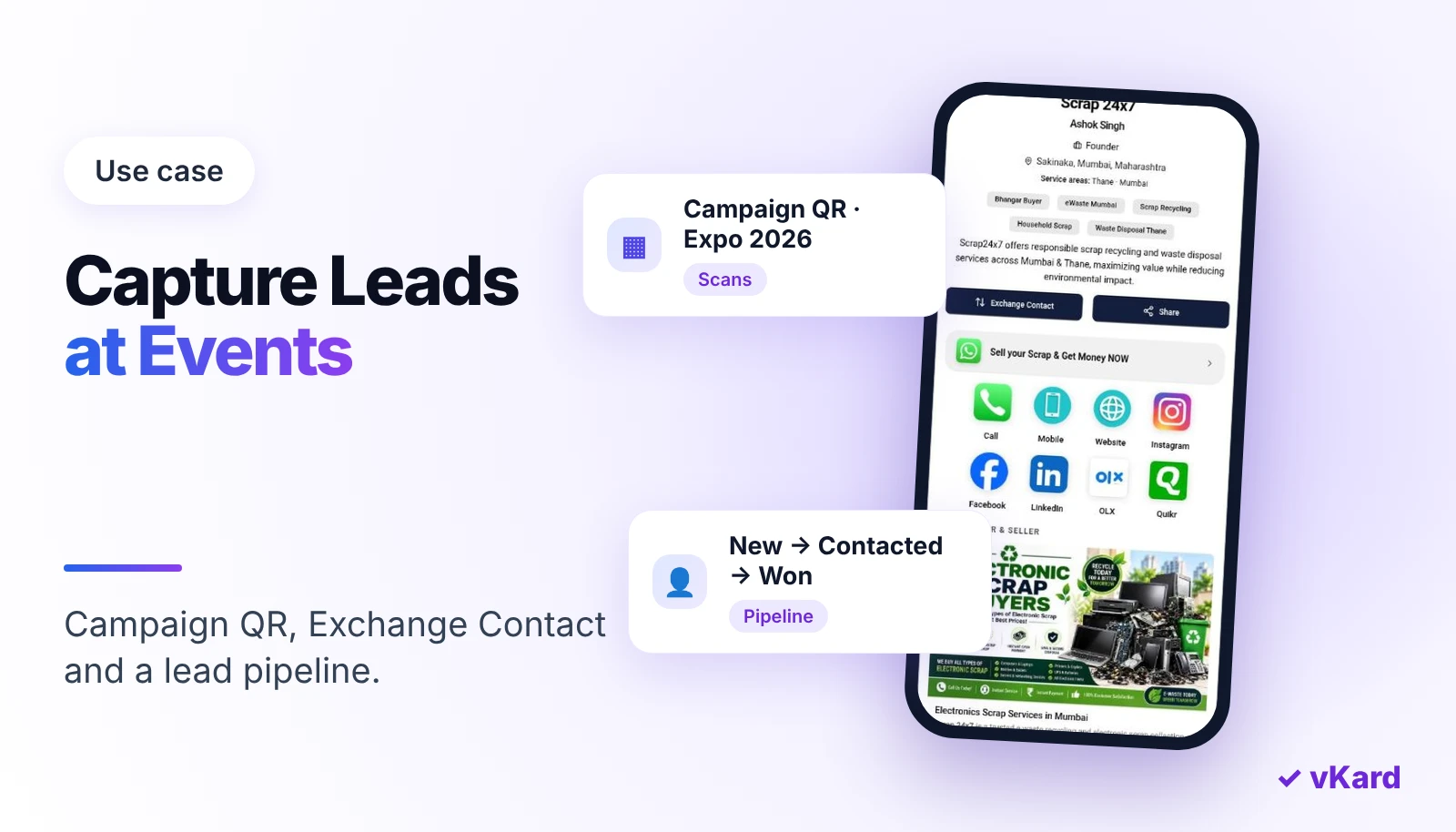
To capture leads at an event, create a Campaign QR Code for it, place the QR on your stand, and let visitors use Exchange Contact to share their details. Every lead lands in your dashboard with a status you can update from New Lead to Won, and you can export them to CSV.
Steps
- Create a Campaign QR Code. In the dashboard's Campaign QR Codes tab, create a code for the event with its dates and download it.
- Put it where people look. Print the QR on your banner, desk sign or flyer, next to a short line saying what visitors get.
- Let visitors exchange contacts. Visitors scan, open your profile and use Exchange Contact to send you their name, phone and email.
- Follow up. Open the Leads tab, mark each lead as Contacted, Follow Up, Won or Not Interested and add notes.
- Measure. Check the Campaign QR performance in analytics to see scans, interactions and contacts for that event.
Why a separate QR for each event
A Campaign QR Code has its own dates and short link and reports its own scans, visitors, interactions and contacts. Using one per event tells you which events are actually worth attending next year.
Working your leads
Each lead has one of five statuses: New Lead, Contacted, Follow Up, Won (Deal Closed) or Not Interested, plus a notes field. Search, filter by status and export everything to CSV. If you use HubSpot, Zapier or a webhook, new leads can also flow into your CRM automatically.
Plan notes
Campaign QR Codes and Exchange Contact are paid features, and the number of leads visible in the dashboard depends on your plan. Leads over the limit are never deleted and appear again when you upgrade.
Frequently asked questions
- Do visitors need an app to share their details?
- No. They scan the QR and the profile opens in their browser, where Exchange Contact is a short form.
- Can I use the same QR for several events?
- You can, but separate codes let you compare events. Each Campaign QR Code reports its own results.
- Where do my leads go?
- They appear in your dashboard's Leads tab and can be sent to HubSpot, Zapier or your own webhook on plans with integrations.
Related
Ready to try it?
Create your free vKard or find more answers in the FAQ.
Last updated 2026-10-25.