
Guide
How to share a digital visiting card
On this page
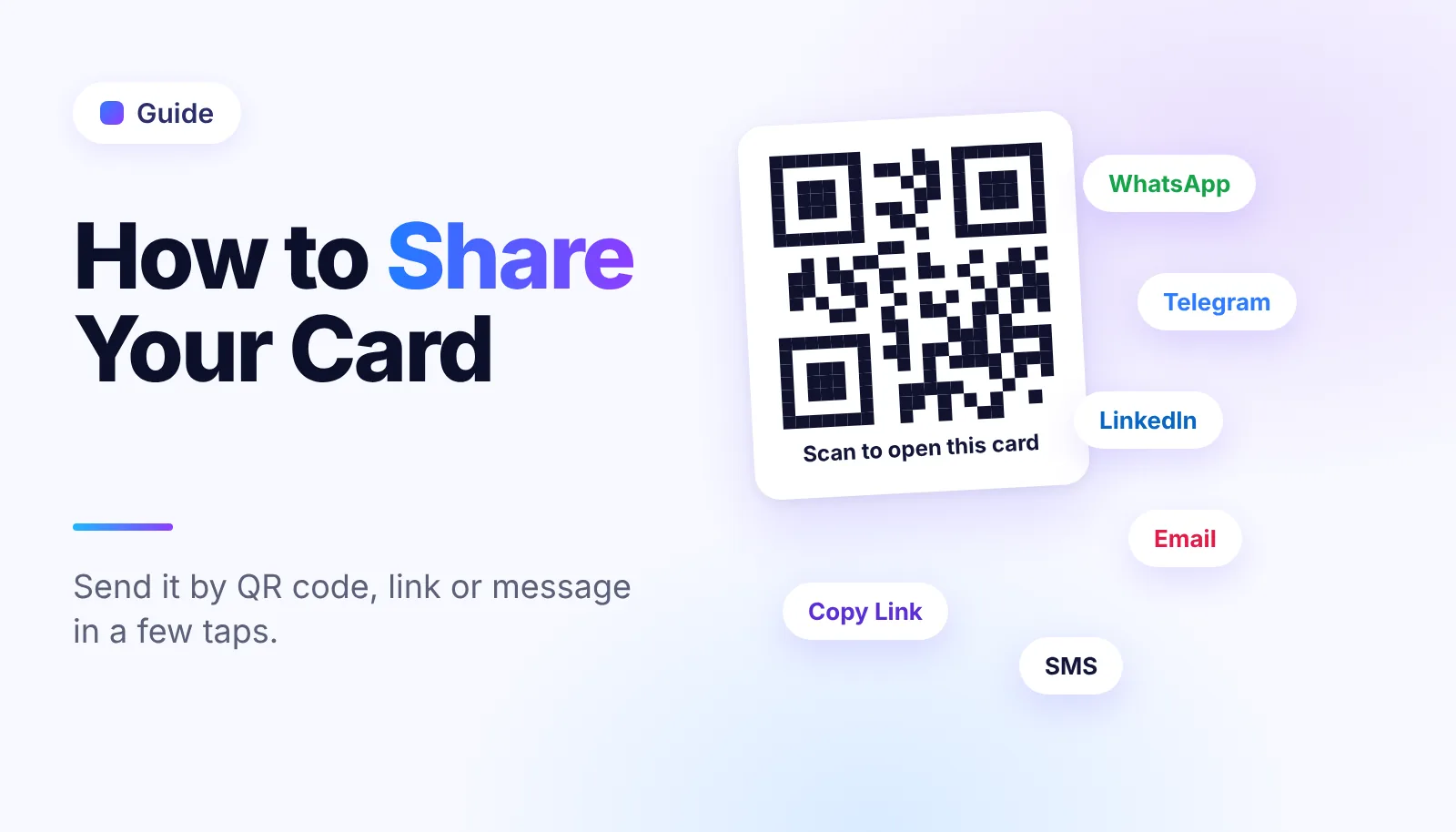
You can share a digital profile by sending its link, showing its QR code for scanning, posting it through a messaging or social app, or letting the recipient save your details to their contacts. In person, the QR code is fastest; remotely, a link works anywhere.
Steps
- Open your profile. Open your profile's link on your phone so the page and its QR code are ready.
- Choose how to share. In person, show the QR code. Remotely, copy the link or use the share buttons for your messaging or social app.
- Let them save it. Point out the save-to-contacts button so the recipient can keep your details on their phone.
In person: the QR code
Show the QR code on your screen and the other person scans it with their camera. The profile opens in their browser with nothing to install. Keep screen brightness up and avoid glare so it scans on the first try.
Remotely: the link
Paste the link into an email signature, a message or a social profile. Because the link always points at the current version of your profile, there is nothing to resend when your details change.
Straight into their phone
A save-to-contacts button downloads a vCard (.vcf) file that opens in the contacts app, so the recipient does not retype anything. Some services can also add a profile to a phone wallet.
Frequently asked questions
- What is the fastest way to share a digital profile in person?
- Show its QR code and let the other person scan it with their phone camera. The profile opens in their browser without installing an app.
- Can I put my digital profile in my email signature?
- Yes. Add the profile's link to your signature; because it points at a live page, it stays current when you update your details.
Related
Ready to try it?
Create your free vKard or find more answers in the FAQ.
Last updated 2026-10-04.